


Video Editor
3.418.90K Reviews
App Specs
- Version
- 8.43.0
- Updated On
- License
- Free
- Downloads
- 10,000,000+
- Developer
- WeVideo Inc.
- Categories
- Video Players & Editors
- Platform
- Android
Screenshots
 Analysis by AppCompare
I tend to judge a mobile video editor by what happens between having a few clips and actually finishing something I’m comfortable sharing. Video Editor, made by WeVideo Inc., is aimed at that practical gap: it puts editing tools on a phone or tablet so a quick idea does not have to wait until I’m back at a computer. It is free to install, though in-app purchases range from $0.99 to $359.88 per item, so I would check the available options before building a regular workflow around it.
That balance is the main thing to keep in mind. A phone editor can make short projects feel approachable, but it is not automatically the right place for every complex edit. I’d consider this app when speed and convenience matter more than detailed desktop-level control, and I’d compare its current tools with my needs before committing to a larger project.
A useful starting point for short projects
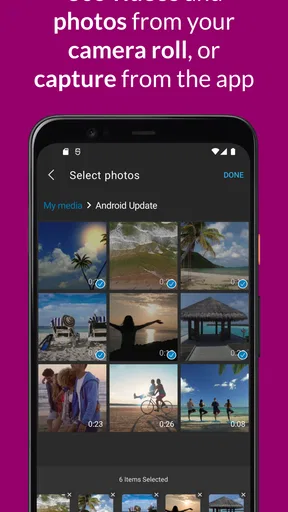
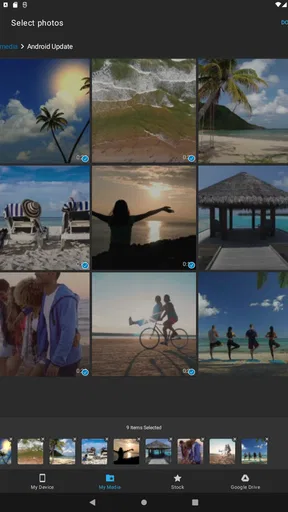
Video editing can feel like a chore when the first step is sorting footage, choosing a format, and learning a complicated interface. This app’s focus on making and sharing videos in minutes gives it an approachable role for small, clearly scoped projects: a short family recap, a club announcement, or a simple clip assembled from moments already on your phone. The useful trick is to decide what the finished video needs to do before opening the editor. A single purpose makes it easier to choose clips and avoid tinkering without direction.
For example, if I were putting together a quick weekend recap, I would first pick only the shots that move the story along: arrival, one memorable moment, and a closing view. That small bit of selection can matter more than adding extra effects. On a compact screen, fewer clips also make the sequence easier to review and refine.
Where it sits among mobile editors
Against the usual alternatives in video editing, Video Editor makes most sense as a general-purpose mobile option rather than a specialist tool. A social platform’s built-in editor may be quicker if I only need to trim one clip and publish it there. A desktop editor is usually a better fit for long timelines, fine-grained audio work, or a project that must meet strict delivery requirements. This app occupies the convenient middle ground: more room to shape a video than a one-tap post, without turning a casual project into a workstation task.
That middle ground has a trade-off. Mobile editing is convenient because the footage and editor are close at hand, but a small display can make precise selections and detailed review less comfortable. I would use it for a short piece with a clear sequence, then watch the finished version from beginning to end before sharing. For a project with many layers or a demanding brief, I’d rather move to a larger screen than force the phone workflow to do everything.
Getting Started with Ease
First things first, downloading and installing the Video Editor app is a breeze. Available on both Android and iOS, you can grab it from the App Store or Google Play. Once installed, you’re greeted with a user-friendly interface that’s as intuitive as it gets. The layout is clean, with all the tools you need right at your fingertips.
Worth Reading Before You Choose

EA SPORTS FC Mobile 26 Is a Bigger Football Game, but It Takes Time

Flipboard Shows What News Apps Must Do Beyond the Feed

Switching to Android Auto Means Rethinking Your Driving Routine

Google Calendar Makes a Crowded Week Easier to Manage

Ludo King Makes the Most of the Minutes Between Plans

Baby Panda World Brings Quick Play to Modern Phones, but Its Game Library Feels Busy
One thing I immediately appreciated was the tutorials offered when you first launch the app. They’re quick, straightforward, and give you a solid overview of the app’s capabilities. This is especially handy if you’re new to video editing and feeling a bit overwhelmed.
Features That Spark Creativity
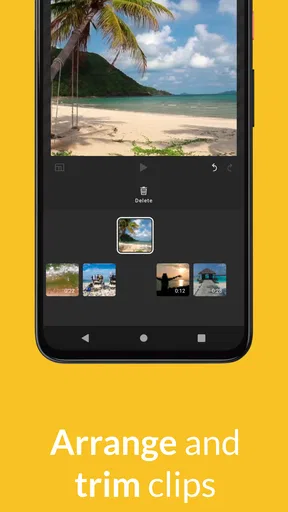
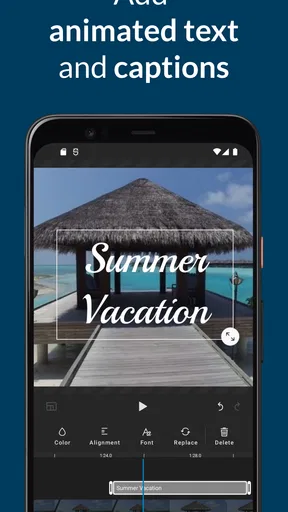
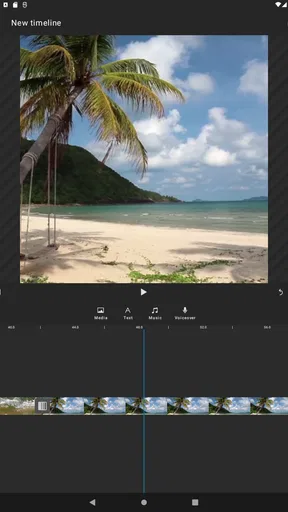
The app is packed with features, but let’s talk about some of the standout ones that really caught my attention. It offers a wide range of editing tools from basic cuts and trims to more advanced features like layering and color correction. The app’s drag-and-drop functionality makes moving clips around super smooth.
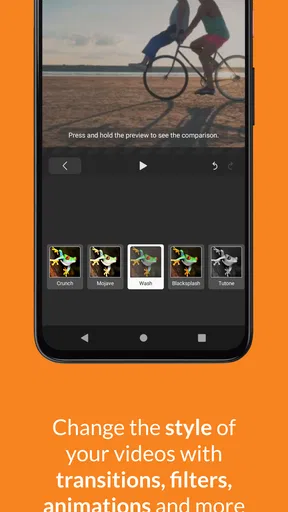
Now, for those who love adding a bit of flair, the app includes a plethora of transitions and effects. Whether you’re looking to add a simple fade or something more dynamic, you’ve got options. Plus, the real-time preview feature is a lifesaver, letting you see how everything looks before you commit to the changes.
Making the edit easier to revise
One practical way to work with cuts, layers, and effects is to build the video in passes instead of trying to perfect every shot as it goes onto the timeline. I’d first arrange the clips into a sensible order, then trim the beginnings and endings, and only after that consider transitions or color adjustments. This keeps decorative choices from hiding a weak sequence and makes it easier to identify which change actually improves the result.
Real-time preview is most valuable when used as a check, not just a source of instant gratification. I would replay the joins between clips, because a transition that looks attractive on its own can still make the overall pace feel slow. If a short clip is meant to be watched on a phone, a clean cut may be clearer than an effect on every scene. The app gives room to experiment, but restraint is often what makes a quick edit feel deliberate.
Layering and color correction also suggest a useful distinction between “more tools” and “more control.” They can help when footage needs a small visual adjustment or when elements need to sit together, but the presence of those tools does not make every project suitable for a phone. If I needed consistent color across a long sequence, I would take extra care to review shots together rather than judging each one in isolation. A single clip can look pleasing by itself and still stand out awkwardly beside the next.
Music and Sound Effects
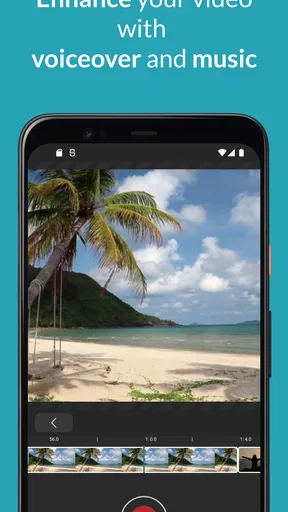
No video is complete without the perfect soundtrack, right? The app comes with a built-in library of royalty-free music and sound effects. Browsing through the selection is easy, and you can seamlessly integrate audio into your project. Adjusting levels and adding voiceovers is just as simple, ensuring your video sounds as good as it looks.
Sound choices that serve the story
Audio is an easy place to make a mobile edit feel either finished or surprisingly messy. For a spoken update, I would make the voice the priority and keep background music low enough that every sentence remains easy to understand. For a montage without narration, the music can carry more of the mood, but I would still listen for abrupt starts and endings before exporting. These are small checks, yet they make a bigger difference than adding another visual effect.
The built-in royalty-free selection is convenient when I want a soundtrack without searching elsewhere, especially for a quick personal or social clip. It is still worth choosing a track to fit the pace and tone rather than treating music as filler. If I were making a piece where a particular song, exact timing, or carefully mixed dialogue mattered, I would take time to check the available audio controls and consider whether a dedicated audio workflow would suit the job better.
Exporting and Sharing
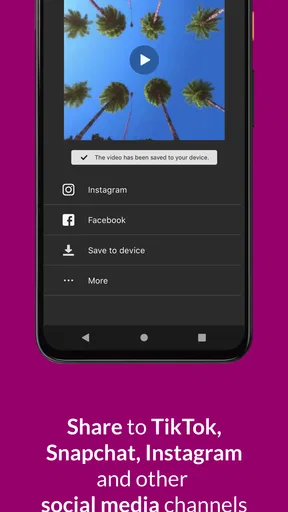
Once your masterpiece is ready, exporting is a straightforward process. You can choose from various resolutions, including HD, ensuring your video looks stunning on any screen. Sharing your videos directly from the app to platforms like YouTube, Instagram, or Facebook is just a tap away. This seamless integration with social media makes it a fantastic tool for content creators looking to engage with their audience quickly.
Think about delivery before the final tap
Export is not just the last button to press; it is where I check whether the edit fits its destination. A video meant for a quick social post has different needs from a clip someone will watch on a larger screen. I would choose a resolution with the intended audience in mind, then watch the exported file rather than assuming the preview tells the whole story. That final playback can catch an awkward cut, a sound level that feels different outside the editor, or a moment that needs a little more breathing room.
Direct sharing is useful when the finished clip is ready to go, but it is not the only sensible handoff. If I am sending a draft to someone for feedback, I would keep the review step separate from publishing so a rough version does not accidentally become the public one. For a creator who posts frequently, that small separation between “exported” and “published” is a helpful habit, especially when a caption, audience, or final check still needs attention.
Performance and Reliability
In terms of performance, the app runs smoothly on both Android and iOS devices. I didn’t experience any lag, which can be a real mood-killer when you’re in the zone. It’s also worth mentioning that the app’s developers are quite active, rolling out regular updates to fix bugs and add new features. So, you can expect the app to keep improving over time.
Another thing I appreciate is the app’s offline capabilities. You can work on your projects without a constant internet connection, making it perfect for editing on the go.
What to expect from the workflow
Offline editing is especially handy when I want to use travel time or a quiet break to arrange footage instead of waiting for a reliable connection. I would still treat an offline session as a chance to make progress, not as a reason to skip checking the final handoff. A practical routine is to assemble and refine the project when convenient, then make sure the finished file is ready to share when I am back in the right setting.
For a new user, the tutorials can lower the first hurdle, but there is still a learning curve in deciding how much editing a project needs. I would start with a short test video before taking on anything important. That lets me get comfortable with the timeline, preview, and export choices while the stakes are low. It also gives me a chance to see whether the app’s workflow feels natural on my particular device.
Who will get the most from it
I’d recommend it to someone who wants to make short videos without first learning a full desktop suite: parents assembling a quick family recap, students preparing a straightforward presentation clip, or a small creator who needs a convenient way to shape footage on the move. Its mix of basic trimming and more involved tools leaves room to grow beyond simply joining clips, while the tutorials help make the first session less intimidating.
I’d be more cautious if the work depends on exact timing across a long sequence, detailed sound mixing, or a highly controlled professional handoff. A desktop editor or a specialized app may be a better choice in those cases. The same goes for anyone who only needs a one-off trim and finds the extra editing options unnecessary; a simpler built-in tool may get that tiny job done with less setup.
Wrapping It Up
So, is the Video Editor app worth your time? Absolutely. It combines ease of use with powerful features, making it a fantastic choice for anyone looking to dive into video editing. Whether you’re crafting a short clip for social media or working on something more ambitious, this app has got you covered.
With its user-friendly interface, vast array of features, and seamless export options, it’s a tool that can help bring your creative vision to life. Give it a spin, and you might just find it becoming your go-to editor for all your video projects.
Where I’d draw the line
The app is rated for Everyone, has a 3.4 average from around 165,000 ratings, and has passed 10 million installs. Those figures suggest that it has reached a broad audience, but they are not a substitute for checking whether its current workflow suits you. It is free to start, while optional purchases can range from $0.99 to $359.88 per item, so I would pay attention to what is included before choosing it for repeated work. Version 8.43.0 supports Android 8.0 and newer; the app first appeared on February 24, 2013, and has accumulated around 19,000 written reviews.
My practical verdict is that it is worth trying when I want an accessible mobile editing space, a soundtrack option, and a direct path from rough clip to shareable result. I would use it for a short project, test the export once, and then decide whether its pace and controls fit the way I work. If my goal were a complex, tightly specified production, I would choose a more specialized editor instead. That is not a knock on this app; it is simply the difference between a handy creative tool and a workflow built for exacting work.
Pros
- Intuitive user interface for beginners.
- Wide range of editing tools available.
- Supports multiple file formats.
- Real-time effects preview feature.
- Regular updates with new features.
Cons
- Some features require in-app purchases.
- Can be resource-intensive on older devices.
- Occasional crashes during export.
- Limited transitions in free version.
- Ads can be intrusive in the free version.
FAQs for Video Editor
Is the Video Editor app free to use?
The Video Editor app offers both free and premium versions. The free version includes basic editing tools and features, suitable for casual users. However, to unlock advanced functionalities, such as high-resolution exports, special effects, and additional filters, you may need to purchase a subscription or make in-app purchases.
What are the system requirements for the Video Editor app?
The Video Editor app is compatible with most Android and iOS devices. However, for optimal performance, it is recommended to use a device with at least 4GB of RAM and the latest operating system updates. Using older devices might result in slower processing times and potential lag during editing.
Can I export videos in 4K resolution with this app?
Yes, the Video Editor app allows for 4K resolution exports, but this feature is typically available only in the premium version. Users of the free version might be limited to lower resolutions. Ensure your device has sufficient storage and processing power to handle 4K video files.
Does the app support multi-track editing?
The app does support multi-track editing, enabling users to layer audio, video, and effects for more complex projects. This feature is particularly beneficial for users looking to create professional-quality videos. Access to multi-track editing might require a subscription to the premium version.
Are there any tutorials or customer support available?
Yes, the Video Editor app provides a comprehensive set of tutorials within the app to guide users through various features and functionalities. Additionally, customer support is available via email or chat for further assistance. Premium users might receive priority support options.


